Using tags with CLI
Overview
In this step, you’ll familiarize yourself with performing tagging operations from the AWS CLI.
To do this step, you need to have AWS CLI installed on your machine. Please refer to this link for installation instructions.
Create an access keys
Access keys are long-term credentials for an IAM user or the AWS account root user. You can use access keys to sign programmatic requests to the AWS CLI or AWS API (directly or using the AWS SDK). To use AWS CLI, you must create an Access key.
In the search bar, find and select
IAM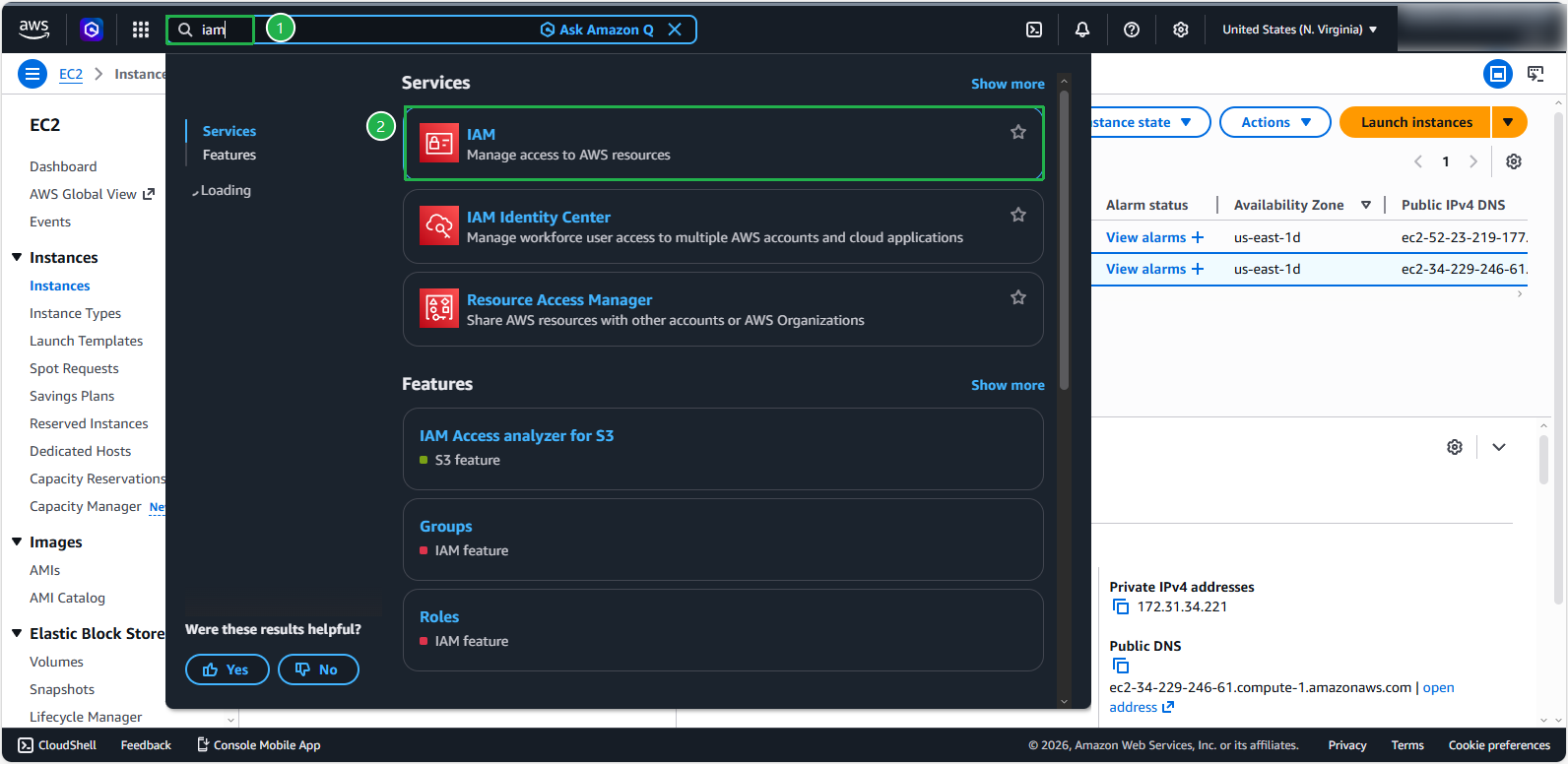
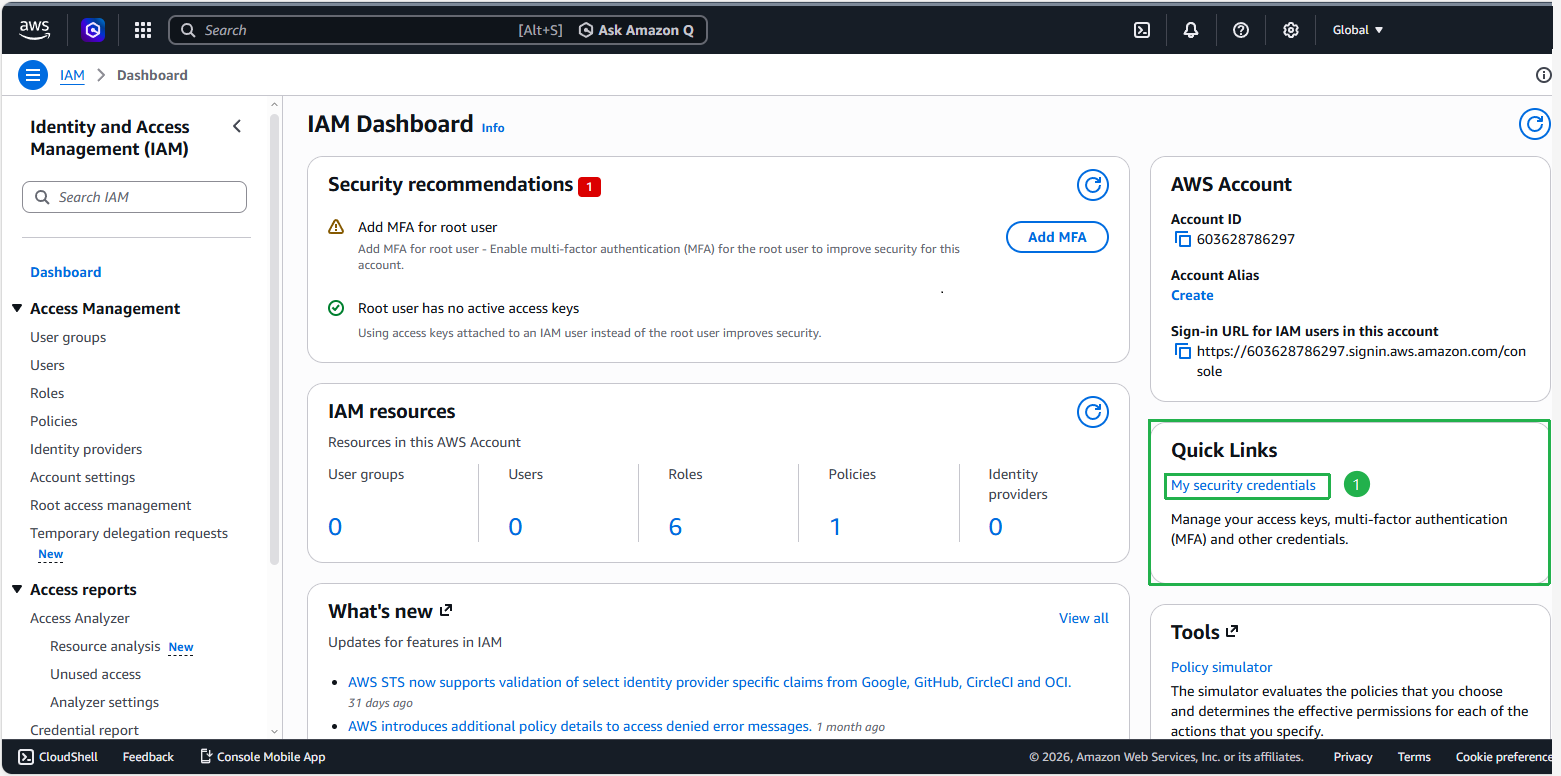
In the Quick Links section, choose My security credentials
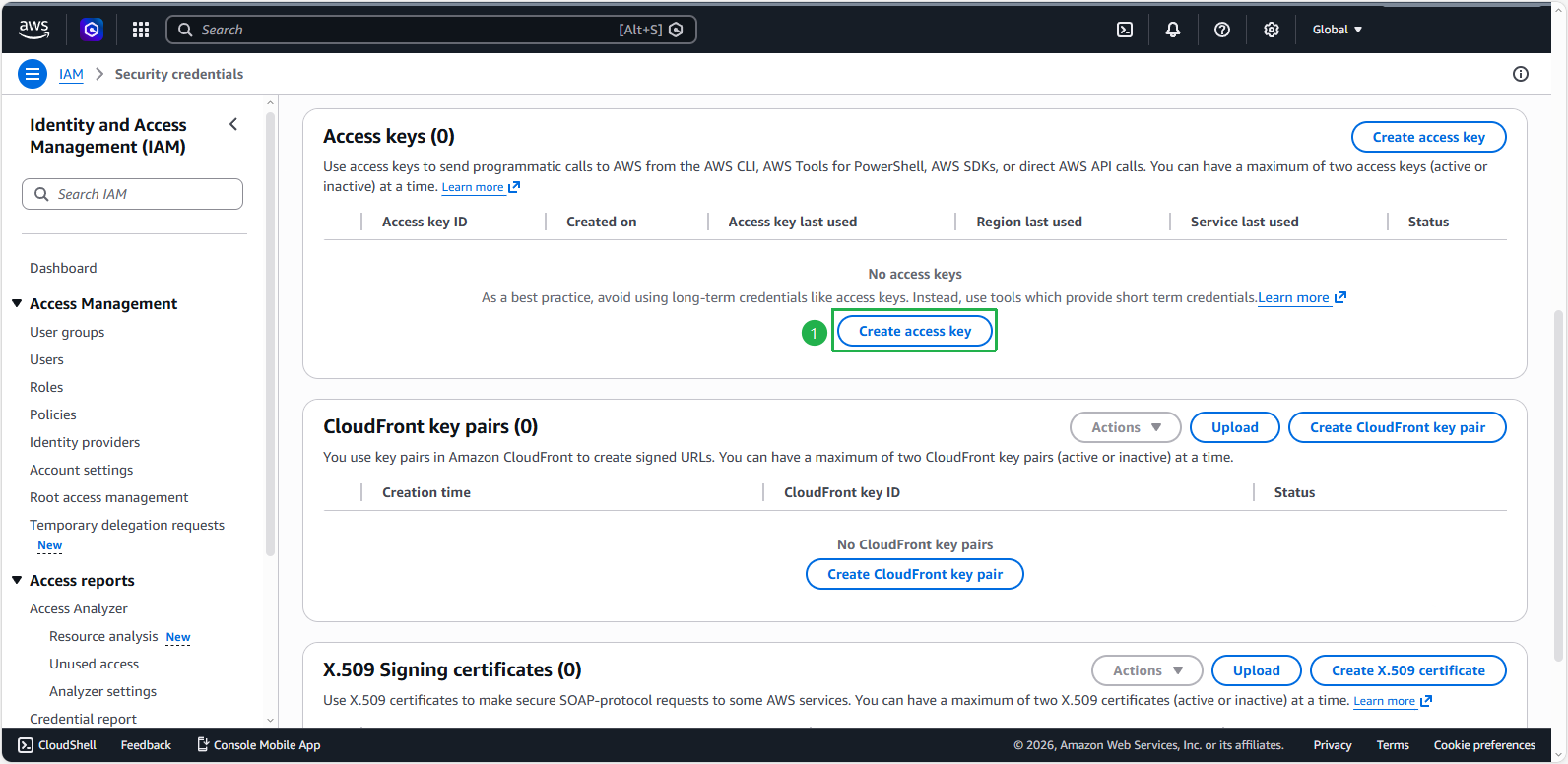
Scroll down to Access keys, choose Create access key
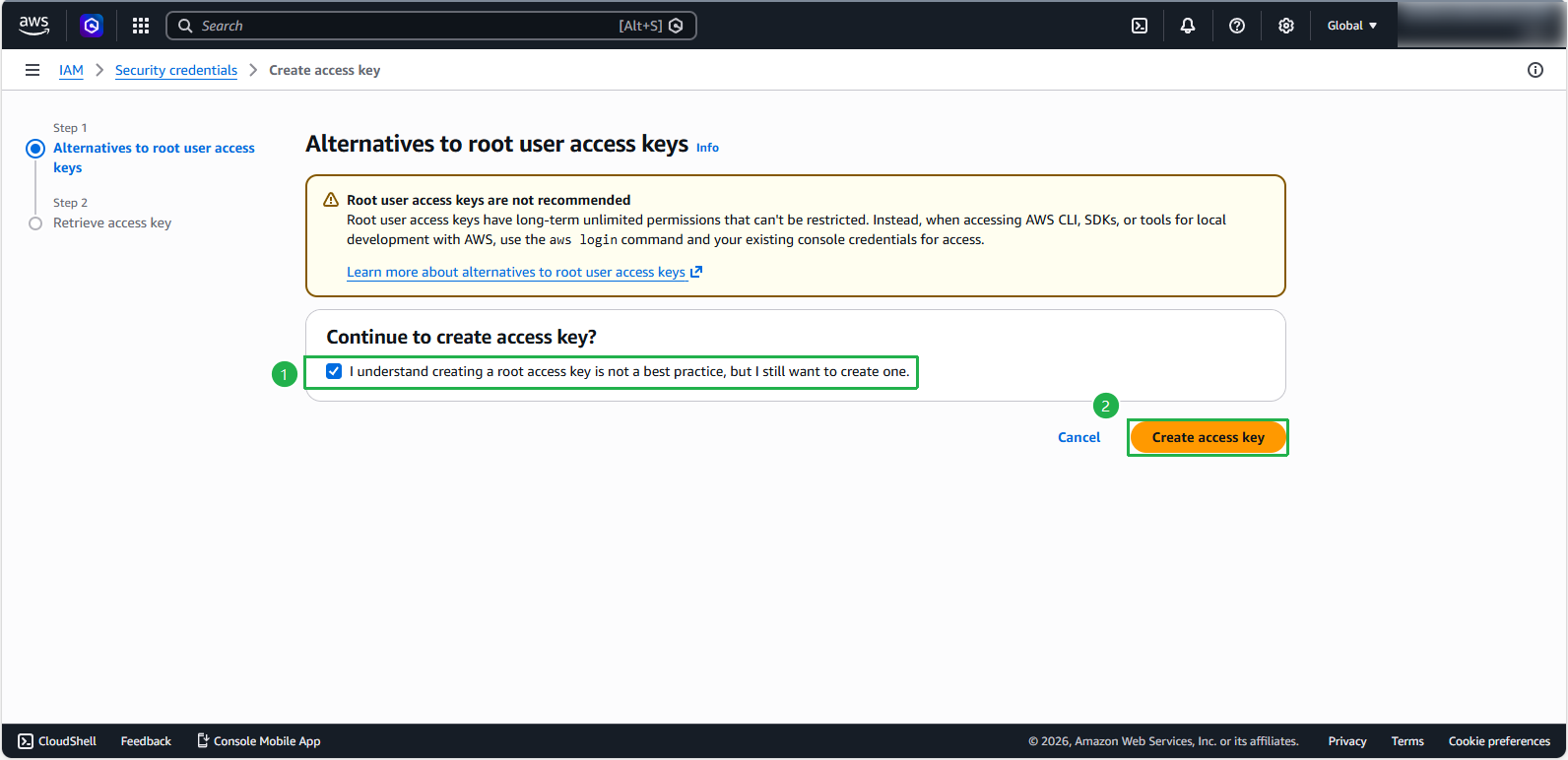
Tick the box to agree: “I understand creating a root access key is not a best practice, but I still want to create one.” Then, choose Create access key
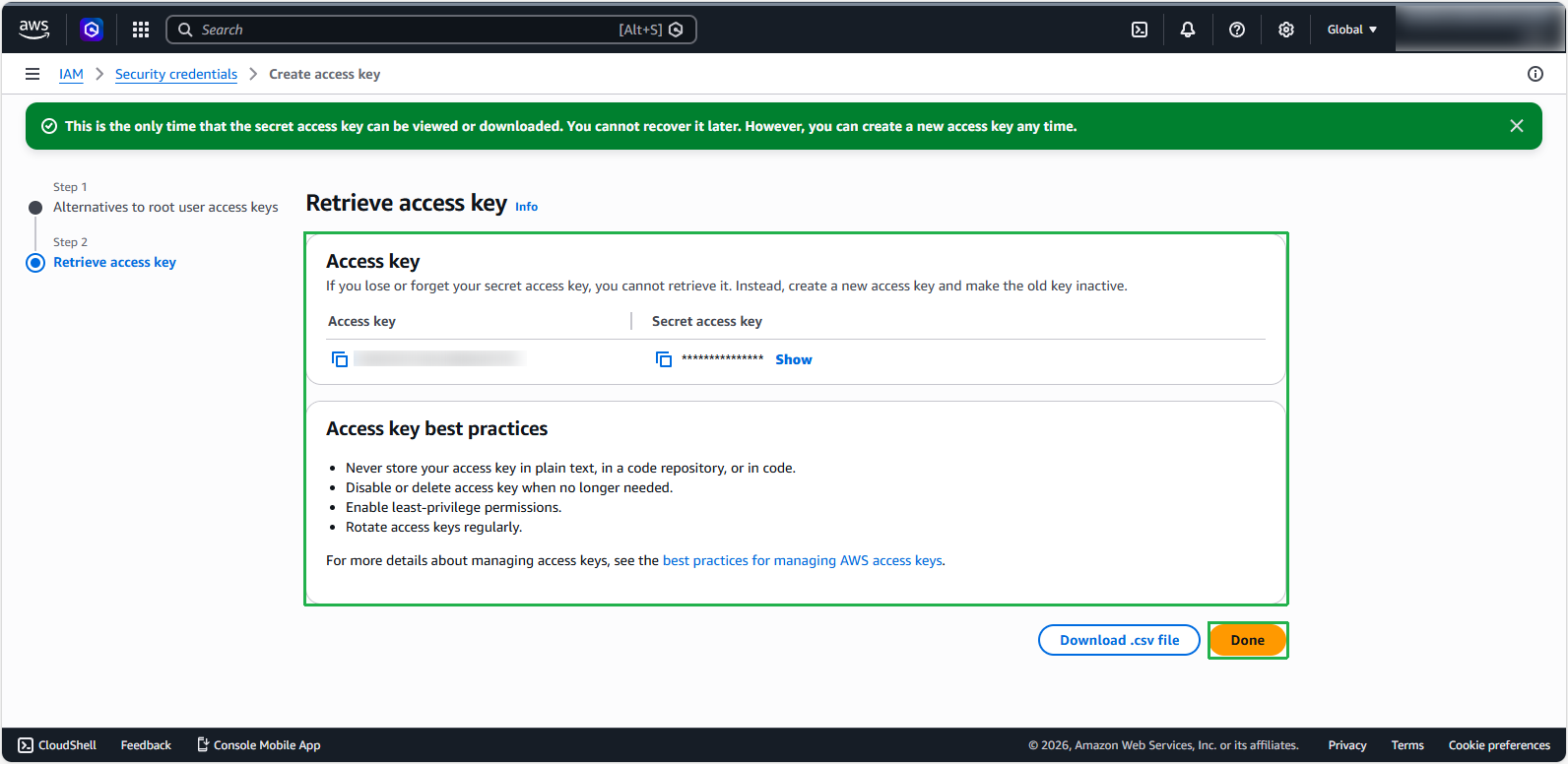
Your access key created successfully. Choose Done to finish the process of creating an access key.
Adding tags to an existing EC2 resource
From the CLI, run
aws configureto enter your Access key, Secret access key, and the region where you want to create tags for EC2 Instances.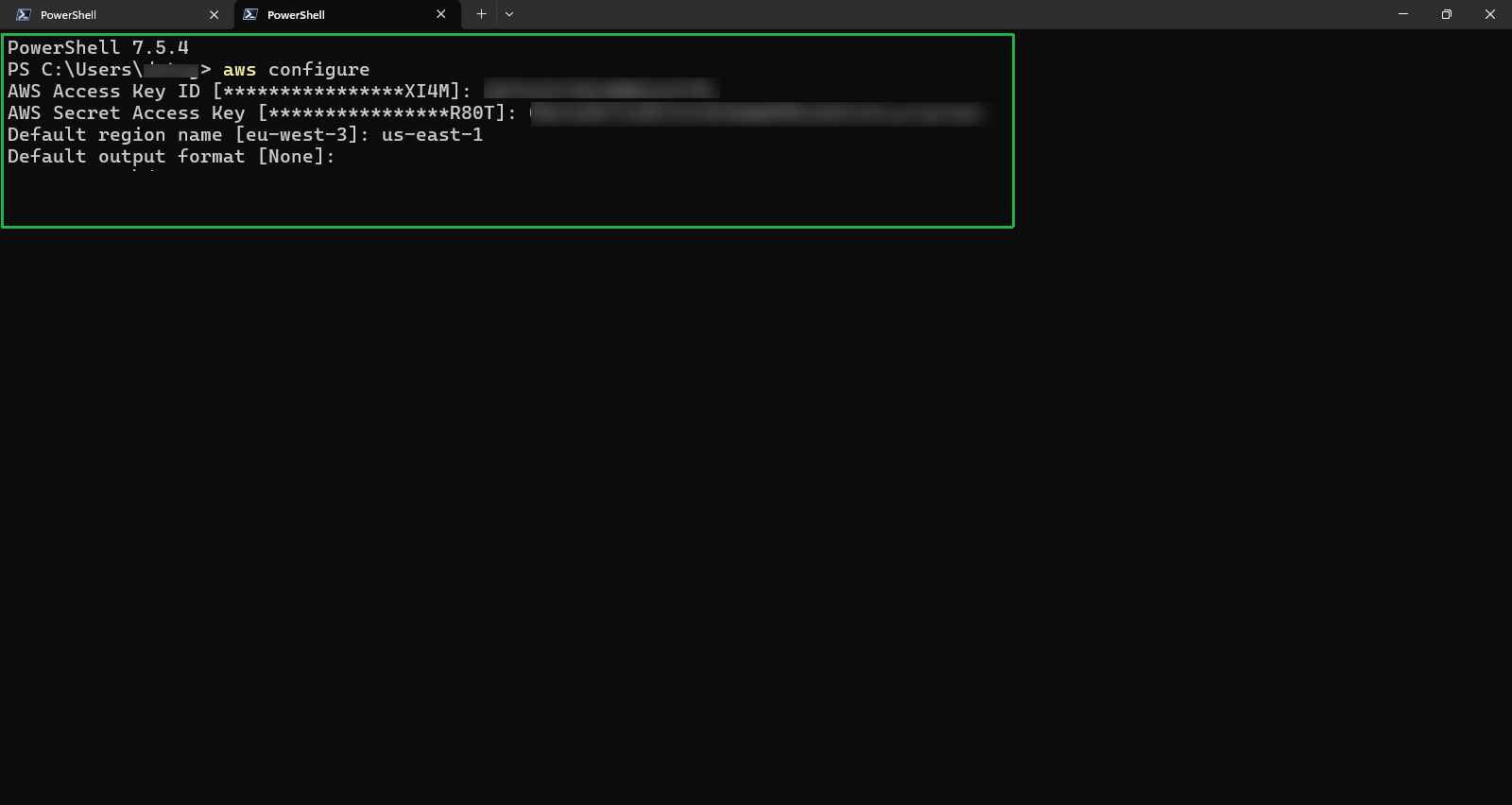
From the CLI, invoke ec2 create-tags with flags –resources and –tags
aws ec2 create-tags --resources <InstanceID> --tags Key=<Key>,value=<Value>
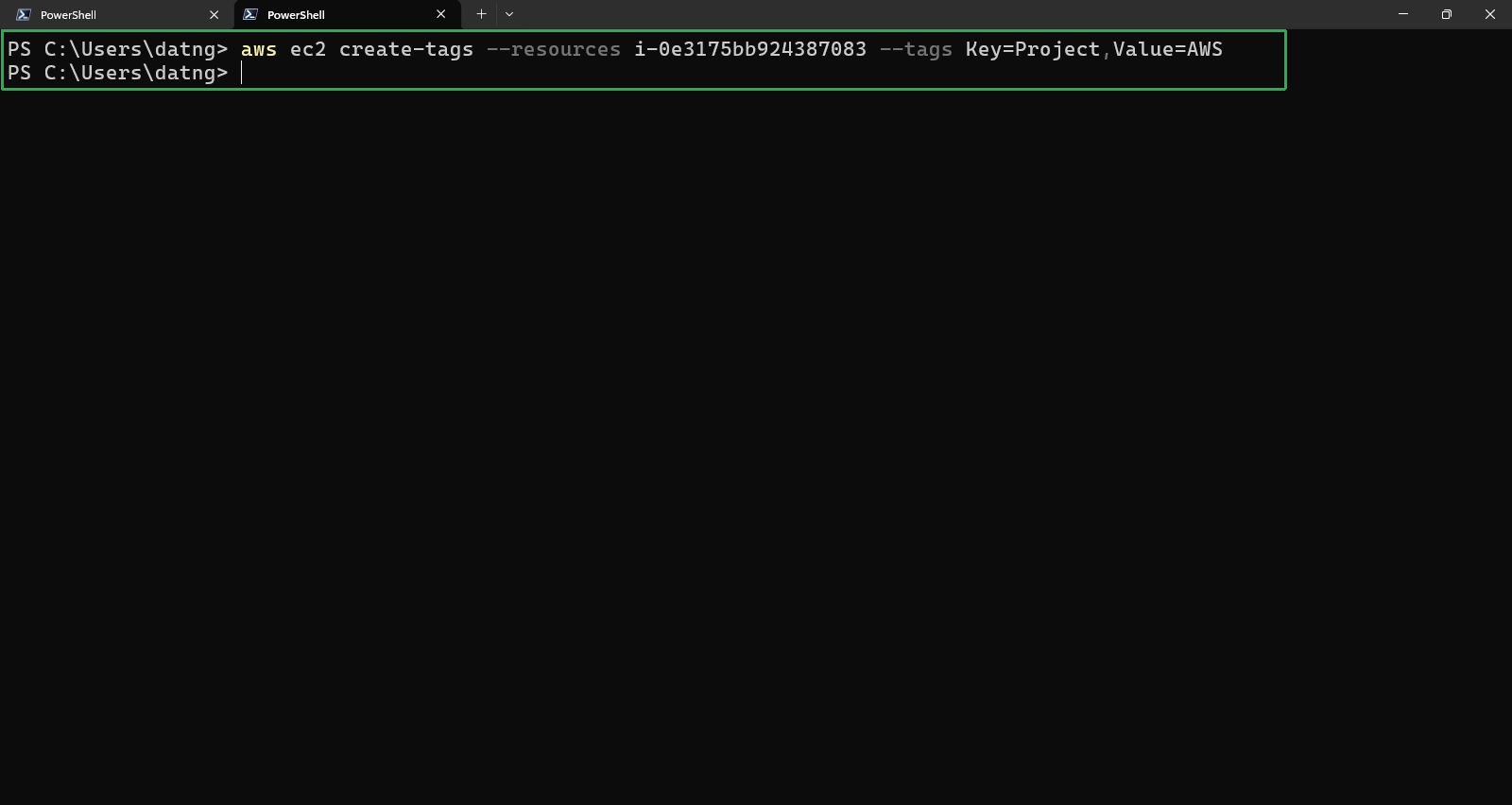
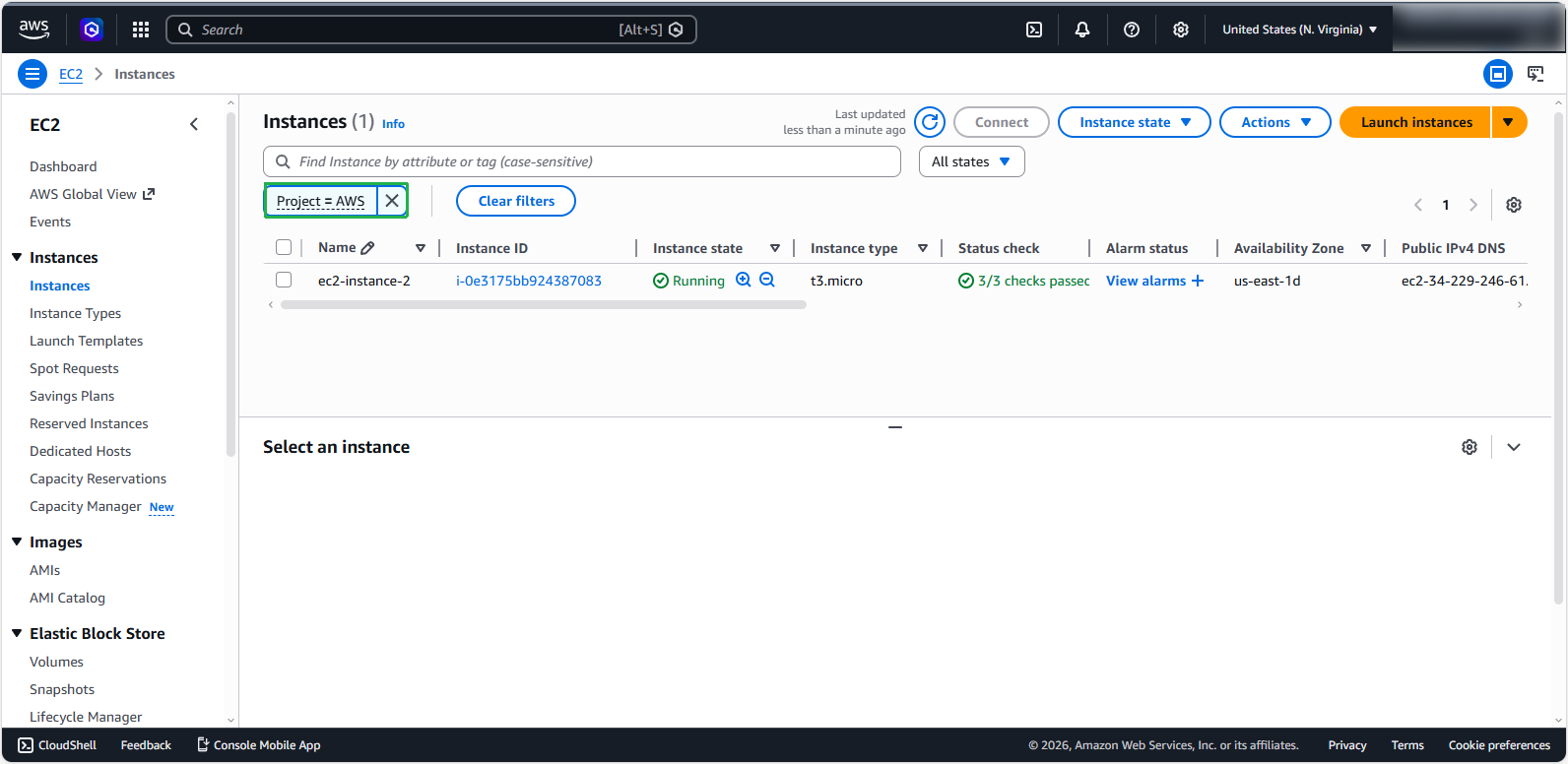
For example, if you wanted to create a tag of “Key=Project,Value=AWS” for an EC2 instance resource, your parameters will be:
aws ec2 create-tags --resources i-0e3175bb924387083 --tags Key=Project,Value=AWS
- If you want to add multiple tags at once, separate them with spaces: ⚠️ Warning: If you cannot run the command below, change your region to us-east-1 or look up the AMI-ID for your region.
aws ec2 create-tags --resources i-0e3175bb924387083 --tags Key=Env,Value=Test Key=Project,Value=AWS
Adding a tag to a new resource
Add tag to new virtual machines
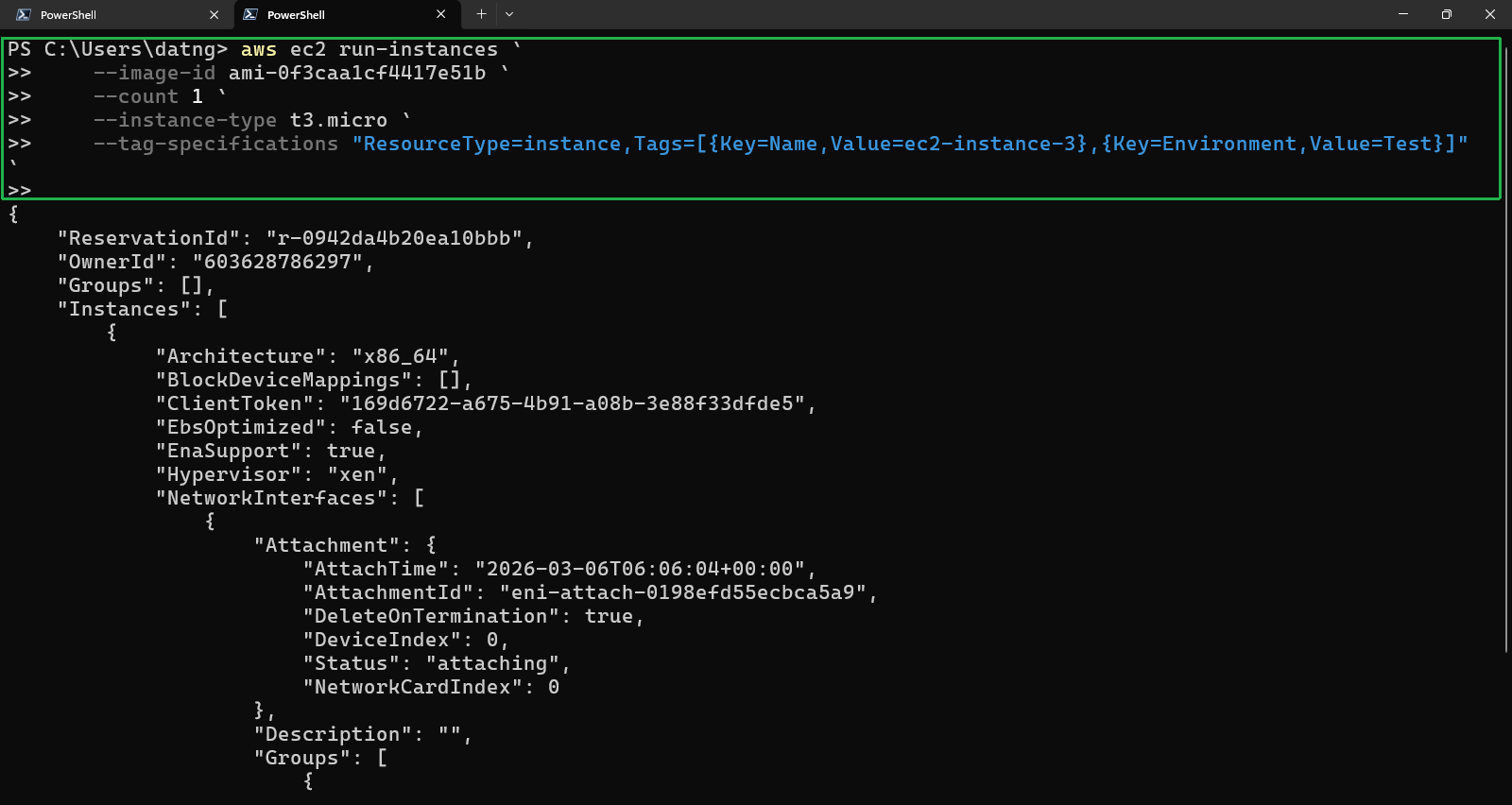
From the CLI, invoke ec2 run-instances to create a new virtual machine and use the flag –tag-specifications to declare tag information:
aws ec2 run-instances `
    --image-id ami-0f3caa1cf4417e51b `
    --count 1 `
    --instance-type t3.micro `
    --tag-specifications "ResourceType=instance,Tags=[{Key=Name,Value=ec2-instance-3},{Key=Environment,Value=Test}]" `
Note: You will have to replace the appropriate parameters for your account.
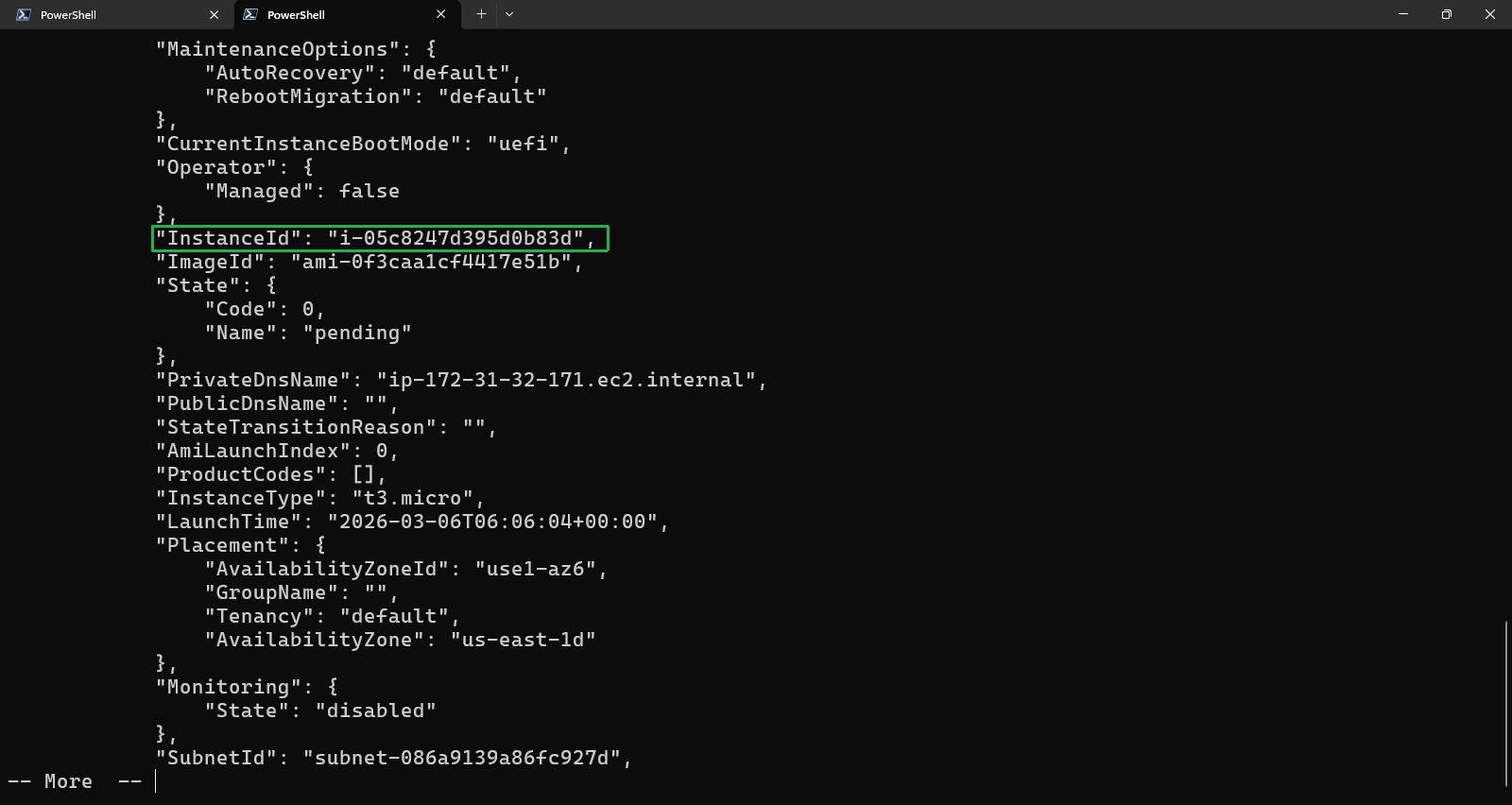
The image below illustrates sample output:
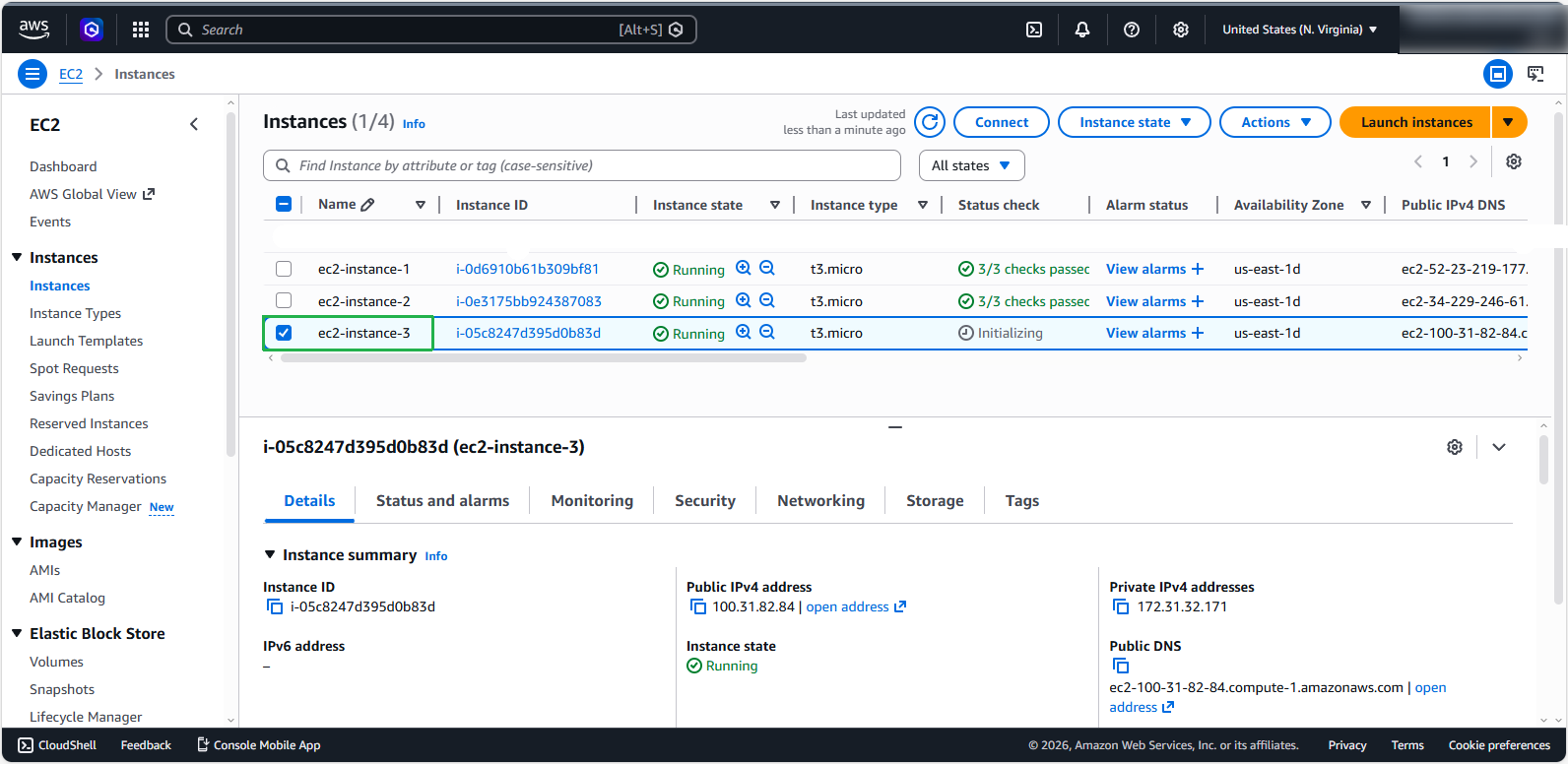
Description of tagged resources
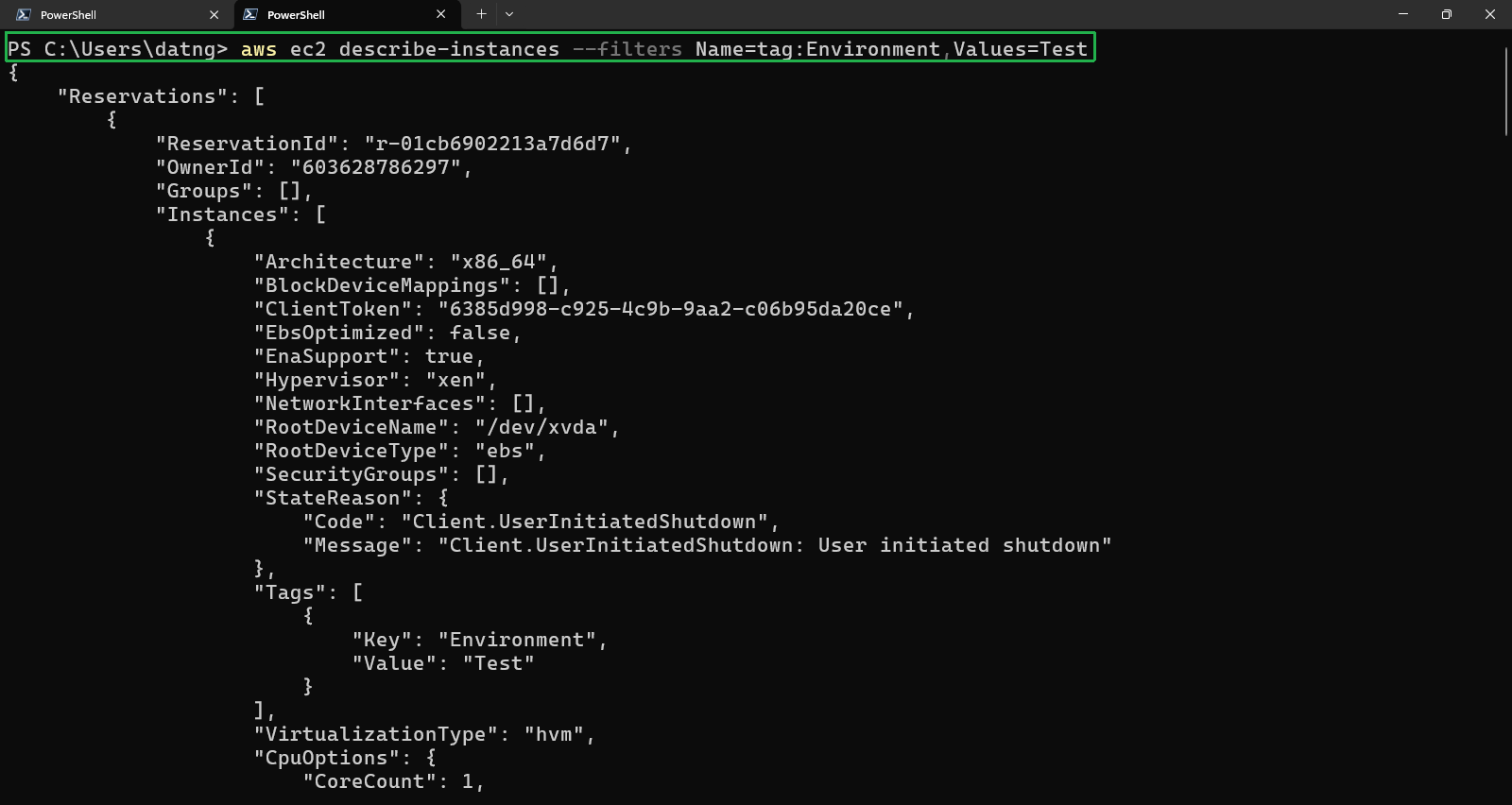
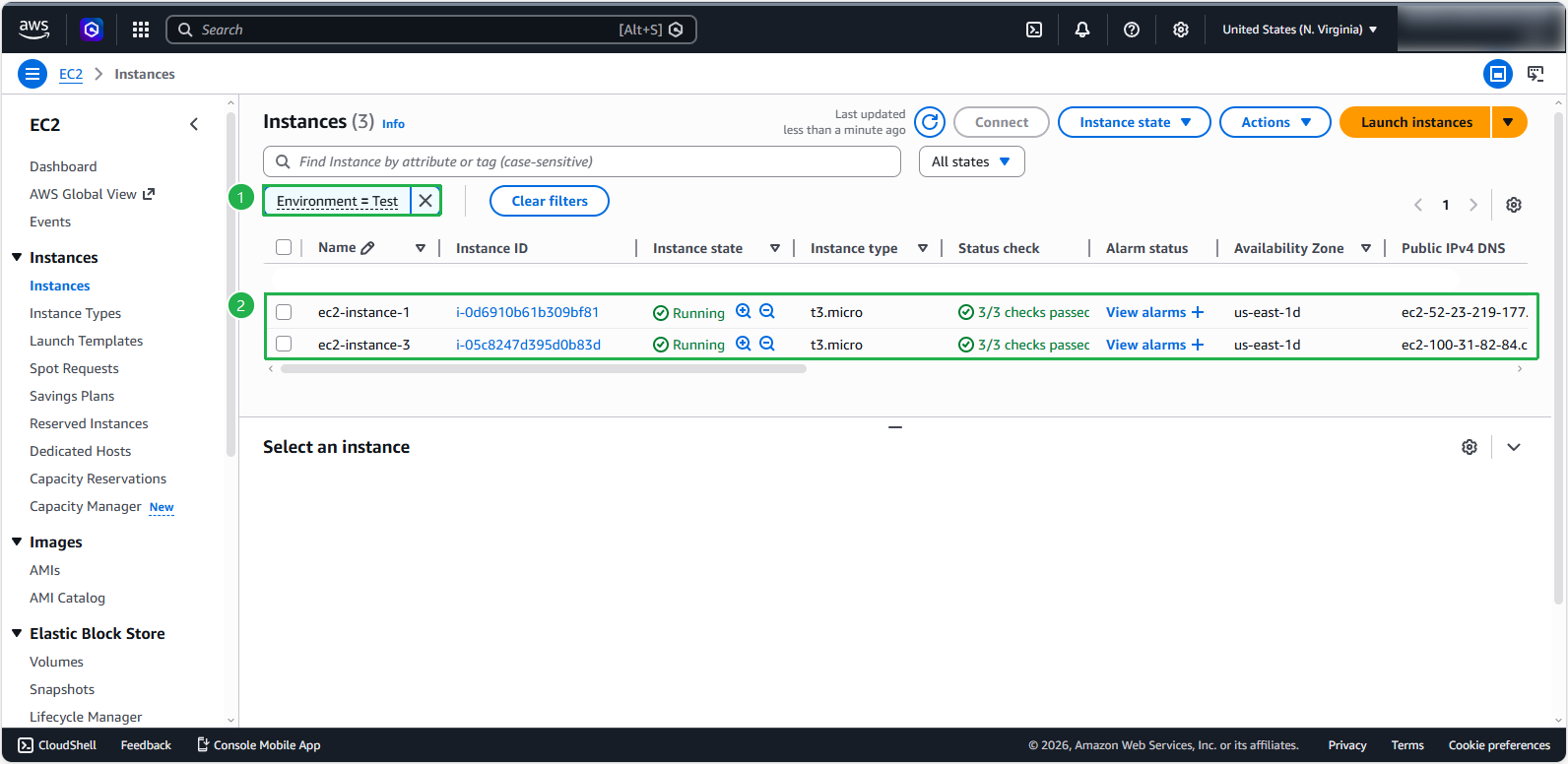
From the CLI, invoke ec2 derscibe-instances with the flag –filters. This command is used to list and display detailed information about EC2 Instances based on a specific tag that you have assigned to them.
aws ec2 describe-instances --filters Name=<tag:key>,Values=<SampleTagKey>
For example:
aws ec2 describe-instances --filters Name=tag:Environment,Values=Test
The picture below illustrates sample output: